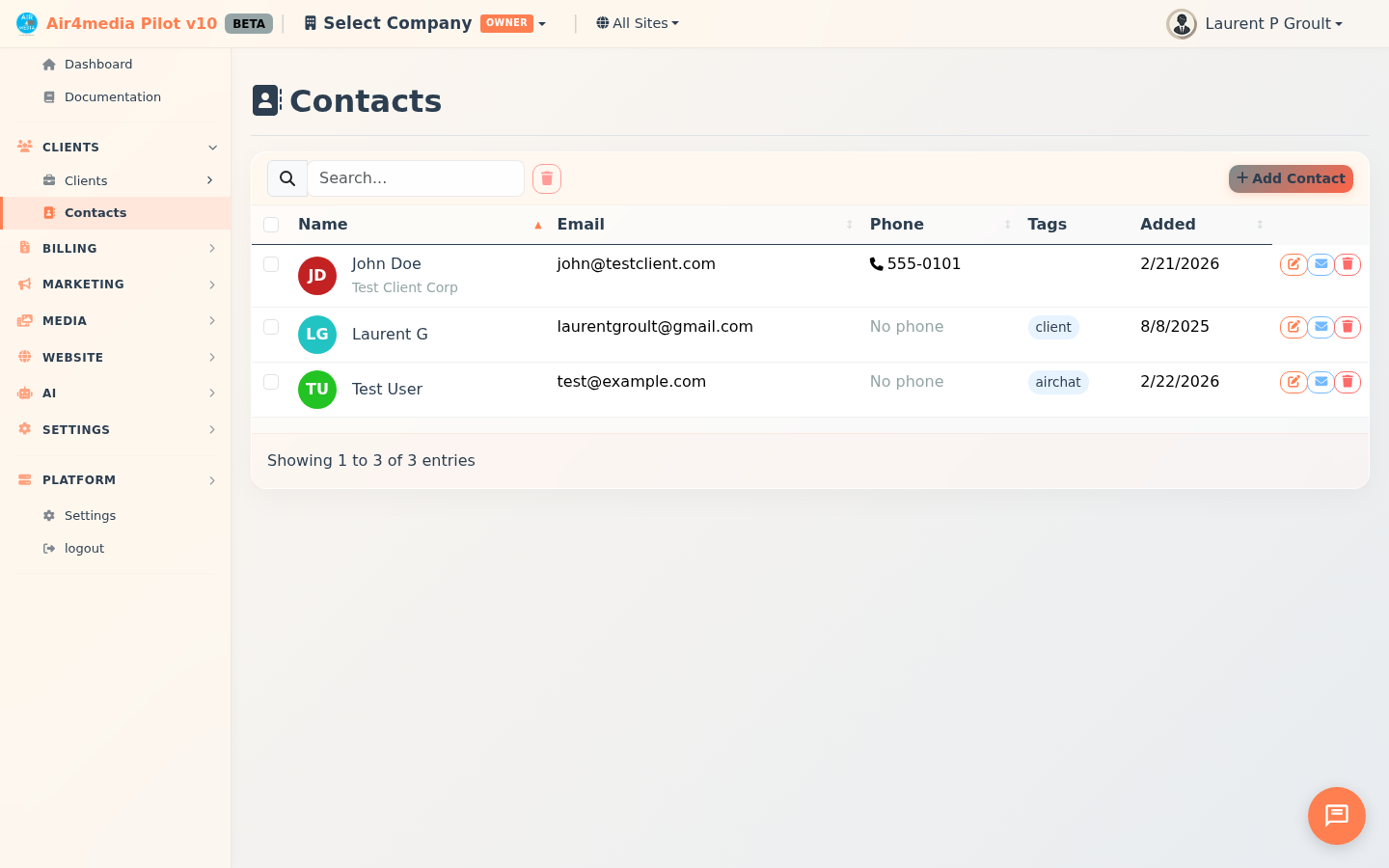
Contacts
Manage your CRM contact list — add, edit, search, and organize the people and businesses you work with, all in one place.
Key Features
- Stats Dashboard: Five live counters at the top — Total Contacts, New Leads, Newsletter, Portal Access, and Customers — click any card to instantly filter the list to that segment, click again to clear
- Contact List: Sortable, paginated table showing name with avatar initials and company, email, phone/mobile, tags, and date added
- Search: Find contacts instantly by name, email, company, or notes
- Tags: Organize contacts with custom tags; the dropdown filter shows how many contacts share each tag
- Add & Edit: Create or update contacts using a full-featured modal form
- Account Auto-Linking: When you enter an email address, the system checks the domain and automatically links the contact to a matching company account — for example, adding someone at acme-creative.com links them to ACME Creative Agency
- Bulk Delete: Select multiple contacts and delete them all at once
- Quick Email: Click the email icon on any contact row to open a new message to that person
- CSV Import: Upload a spreadsheet with a three-step wizard — upload, map columns, and review results
How to Use
Adding a Contact
- Click New Contact in the top-right corner
- Enter the contact's first and last name (required)
- Fill in any details — email, mobile, phone, company, job title, address, city, state, ZIP, website, or notes
- Add tags by typing a name and pressing Enter, or click a suggestion from the "Popular tags" shown below the input
- Click Save Contact — if you entered a business email, the contact is automatically linked to a matching account
Editing a Contact
- Click the Edit button on any contact row
- Update any fields in the form
- Click Save Contact
Searching and Filtering
- Type in the search box to find contacts by name, email, company, or notes
- Use the Tags dropdown to filter to contacts with a specific tag
- Click any stat card at the top to filter by segment (e.g. click New Leads to see ACME Creative Agency's new pipeline contacts) — click again to clear
- Click any column header to sort the list
Deleting Contacts
- To delete one contact, click Delete on their row and confirm
- To delete multiple, check the boxes next to each, then choose Delete Selected
Importing from CSV
- Click Import CSV and drag & drop your file, or click Browse Files
- Review the column mapping — common headers like
telephone,organisation, andfull_nameare auto-detected; adjust any columns as needed and preview your data before committing - Optionally enable Update existing contacts to merge records matched by email, and add default tags to apply to all imported rows
- Click Import Contacts — a summary shows how many were imported, updated, skipped, or had errors
Tips
- Stat cards double as quick filters — click Customers to see just your customers, click again to return to the full list
- Your top 10 most-used tags appear automatically as suggestions when creating or editing a contact
- The email icon only appears on contacts that have an email address on file
- Account auto-linking skips personal email providers (Gmail, Outlook, Yahoo, etc.) — only business domains are matched
- Use Update existing contacts on import to keep your data in sync without creating duplicates
- Contacts are shared across your company — all team members see and manage the same list