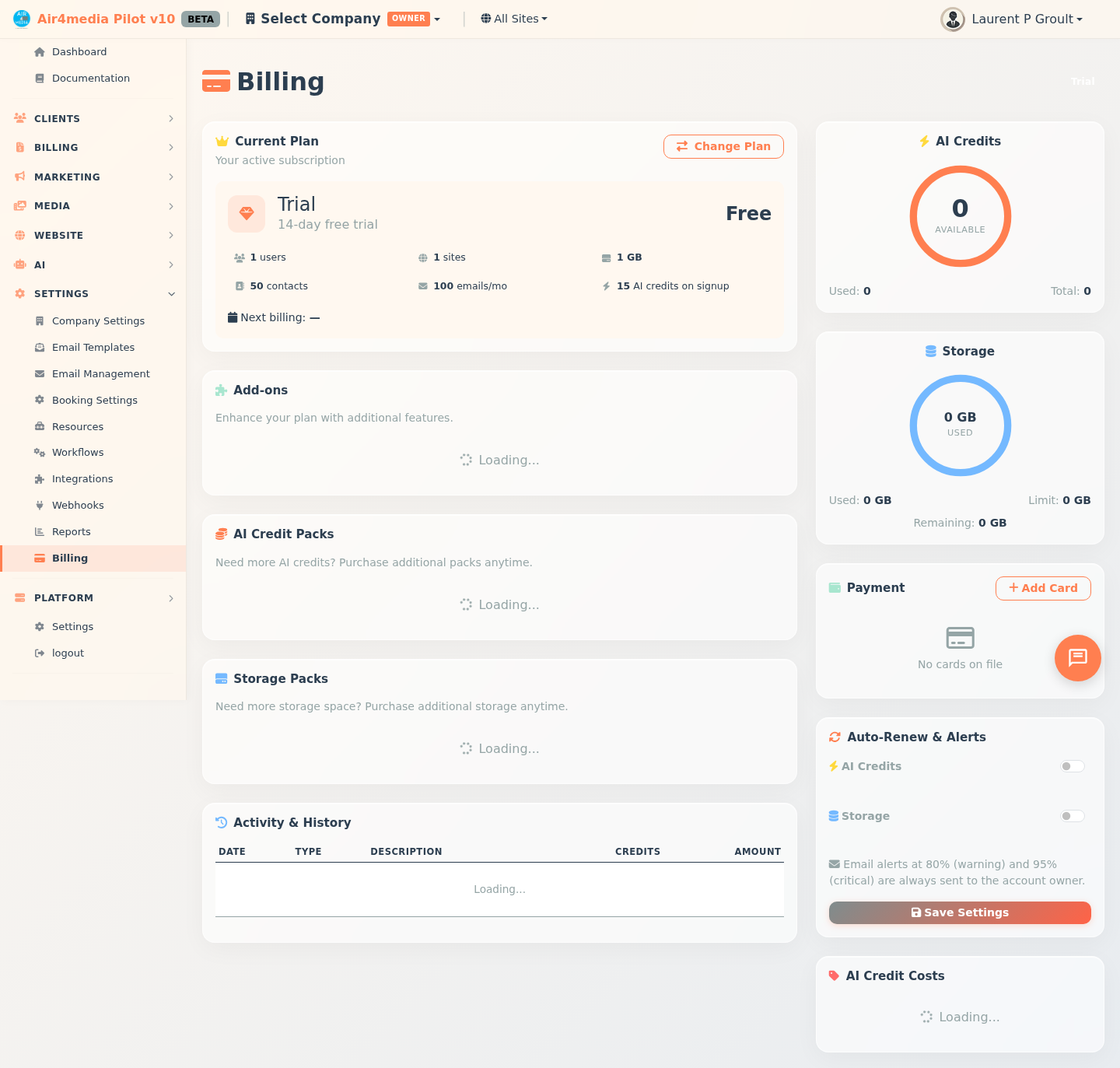
The Billing page lets you manage your subscription plan, AI credits, invoices, payment history, and payment methods — all organized across four tabs. For an account like ACME Creative Agency, this is where you track plan usage, pay outstanding invoices, and top up AI credits when needed.
Key Features
- Overview: Your current plan, AI credits gauge, and saved payment method at a glance
- Invoices: All invoices sent to your company, with outstanding balance tracking, full invoice detail, PDF download, and online payment
- Payments: Complete history of all charges — subscriptions, invoice payments, credit packs, and storage packs — with filters to narrow results
- Plans & Add-ons: Purchase credit packs or storage packs, change your plan, and review your billing history
- Auto-Renew: Automatically replenish AI credits or storage when supply drops below a threshold you set
- Redeem Coupon: Enter a coupon or gift code to unlock free credits, storage, or other benefits
How to Use
Overview Tab
Your active plan is shown with its name, price, and included limits (users, sites, storage, contacts, emails, AI credits). The AI credits gauge shows available vs. used credits and your auto-renew status. Click Change Plan to upgrade or downgrade, or Add Card to save a payment method.
Invoices Tab
All invoices issued to your company appear here. If ACME Creative Agency has unpaid invoices, a red Outstanding Balance banner appears at the top showing the total amount due. Click any invoice row to open the full detail — showing line items, subtotal, tax, total, and payment history. From there you can Download PDF or click Pay Now to pay an outstanding balance immediately.
Payments Tab
A complete log of every charge on your account. Use the filter pills to show only:
- Subscriptions — recurring plan charges
- Invoices — invoice payments
- Credits — AI credit pack purchases
- Storage — storage pack purchases
Plans & Add-ons Tab
Browse and purchase Credit Packs or Storage Packs at any time without changing your plan. Below, Billing History shows all pack and plan purchases — filterable by Plans, Credits, or Storage — with a downloadable PDF for each.
Flying License (Startup Package)
Available in the Change Plan dialog, the Flying License is a one-time purchase that includes 6 months of Premium Economy, 250 GB storage, AI credits, and an investor deck template — ideal for new businesses.
Set Up Auto-Renew
- Open the Auto-Renew & Alerts panel in Plans & Add-ons
- Toggle on AI Credits or Storage, choose a pack, and set the threshold:
- AI Credits: replenishes when credits drop below a set percentage (default 20%)
- Storage: expands when usage rises above a set percentage (default 80%)
- Click Save Settings
Email alerts are always sent at 80% (warning) and 95% (critical), regardless of auto-renew settings.
Add a Payment Method
Click Add Card in the Overview tab. Card details are securely handled by Stripe — we never store card numbers.
Redeem a Coupon
- Enter your code in the Redeem Coupon section (not case-sensitive)
- Click Redeem — a preview of the benefits appears
- Click Confirm & Redeem to apply them to your account
Tips
- A saved payment method is required before auto-renew can activate
- The Invoices tab shows a red badge when you have unpaid invoices — check it regularly
- Use the Payments filter to quickly find a specific type of transaction
- The Flying License appears at the bottom of the Change Plan dialog and is only available once per account
- Coupon codes always show a preview of their benefits before you confirm